
Have a Question?
-
Sales and Marketing
- Articles coming soon
-
Menu Navigation
- Menu Navigation
- Dashboard
- Sales Orders
- How to open a register
- How to close a register
- How to add a customer to an Order
- How to edit a customer on the sale orders page
- How to Create a customer with the sale orders page
- How to add a product?
- Available payment methods
- How to make a Split Transaction
- How to change the order source
- How to add a billing address
- How to add a shipping address
- How to print a receipt
- How to add a note to the order
- How to turn on or off the auto print receipt
- How to make a Sale
- How to make a Sale Copy
- How to make an exchange
- How to give Store credit
- How to use Store credit
- How to Add a Staff Member to a Cash Register / Point of Sale
- How to create a new Customer in Manage Orders
- How to create a new Order in Manage Orders
- How to search for orders
- How to print an invoice
- How to print an Address
- How to print a Pullsheet
- How to print a Receipt
- How to edit an order
- How to ship an order
- How to delete an order
- How to return a product
- How to create a Purchase Order
- How to view a Purchase Order
- How to Edit a Purchase Order
- How to Print an Invoice
- How to Print Label
- How to create a Vendor
- How to edit a distributor
- How to remove a distributor
- How to Search For An Inventory Item
- How to Manually Adjust an Inventory Quantity on Hand via Transfers or Adjustments
- How to Transfer Inventory from One Location to Another
- How to Adjust the Price of an Inventory Product for Any Sales Channel or Location
- How to Adjust Inventory Quantities or Reserve Quantities for Any Location
- How to Add a Catalog Subscription to Your Database
- How to Stop Automatic Updates to a Catalog Subscription
- How to remove or archive a customer
- How to add a customer from the customer page
- How to add a customer from the Point of Sales page
- How to edit a customer from the customer page
- How to edit a customer from the Point of Sales page
- How to Create a Report
- How to modify a Report
- How to delete a Report
- How to Run a Report
- What sales channels can be added
- How to Create a Point of Sale Channel
- How to edit a sales channel
- How to enable a sales channel
- How to delete a sale channel
- How to add a Country Item
- How to remove a Country Item
- How to edit a Country Item
- How to add a User
- How to edit a User
- How to Change my password
- How to remove a User
- How to add a currency type
- How to remove a currency type
- How to edit a currency type
- How to Create a New Order Status
- How to Edit an Order Status
- How to Delete an Order Status
- How to Add BigCommerce as a Sales Channel
- How to Add a Store Location / Inventory Location
- How to Remove a Store / Inventory Location
- How to Edit a Store / Inventory Location
- How to Create a Cash Register
- How to remove a Cash Register
- How to edit a register
- How to open a register
- How to close a register
- How to view a Cash Register’s transactions for today
- How to view all of a Cash Register’s transactions history
- How to Create a Report
- How to delete a Report
- How to run a Report
- How to modify a Report
- How to add a Setting
- How to modify a Setting
- How to Remove a Setting
- How to turn on or off auto print receipt
- How to add a Search filter
- How to set my time zone
- How to change my permission
- How to change my password
- How to change my user image
- How to Log Out
- Mantle Table Functions
- How to Add a Report to My Dashboard
- How to Remove a Report from the Dashboard
- How to view a return order
- How to Archive a Product
- How To Add Shopify Sales Channel
- How to add the API key to Endicia
- How to add a Carrier
- How to edit a Carrier
- How to remove a Carrier
- How to add a Content Type
- How to edit a Content Type
- How to remove a Contents Type
- How to add a Delivery Confirmation Type
- How to edit a Delivery Confirmation Type Type
- How to remove a Delivery Confirmation Type
- How to add a Dimension Unit
- How to edit a Dimension Unit Type
- How to remove a Dimension Unit
- How to add a Label Format
- How to edit a Label Format Type
- How to remove a Label Format
- How to add a Label Output Type
- How to edit a Label Output Type
- How to remove a Label Output Type
- How to add a Label Size
- How to edit a Label Size Type
- How to remove a Label Size
- How to add a Non Delivery Option
- How to edit a Non Delivery Option Type
- How to remove a Non Delivery Option
- How to add a Packaging Type
- How to edit a Packaging Type Type
- How to remove a Packaging Type
- How to add a Service Type
- How to edit a Service Type
- How to remove a Service Type
- How to add a Weight Unit
- How to edit a Weight Unit Type
- How to remove a Weight Unit
- How to Edit a Search Filter
- How to remove a Search filter
- How to make a return
- How to add a product to the Inventory
- Show Remaining Articles (130) Collapse Articles
-
- Sales Orders
- How to open a register
- How to close a register
- How to add a customer to an Order
- How to edit a customer on the sale orders page
- How to Create a customer with the sale orders page
- How to add a product?
- Available payment methods
- How to make a Split Transaction
- How to change the order source
- How to add a billing address
- How to add a shipping address
- How to print a receipt
- How to add a note to the order
- How to turn on or off the auto print receipt
- How to make a Sale
- How to make a Sale Copy
- How to make an exchange
- How to give Store credit
- How to use Store credit
- How to Add a Staff Member to a Cash Register / Point of Sale
- How to create a new Customer in Manage Orders
- How to create a new Order in Manage Orders
- How to search for orders
- How to print an invoice
- How to print an Address
- How to print a Pullsheet
- How to print a Receipt
- How to edit an order
- How to ship an order
- How to delete an order
- How to return a product
- How to view a return order
- How to make a return
- Show Remaining Articles (19) Collapse Articles
-
- Articles coming soon
-
- How to open a register
- How to close a register
- How to add a customer to an Order
- How to edit a customer on the sale orders page
- How to Create a customer with the sale orders page
- How to add a product?
- Available payment methods
- How to make a Split Transaction
- How to change the order source
- How to add a billing address
- How to add a shipping address
- How to print a receipt
- How to add a note to the order
- How to turn on or off the auto print receipt
- How to make a Sale
- How to make a Sale Copy
- How to make an exchange
- How to give Store credit
- How to use Store credit
- Show Remaining Articles (4) Collapse Articles
-
- How to Add a Staff Member to a Cash Register / Point of Sale
- How to create a new Customer in Manage Orders
- How to create a new Order in Manage Orders
- How to search for orders
- How to print an invoice
- How to print an Address
- How to print a Pullsheet
- How to print a Receipt
- How to edit an order
- How to ship an order
- How to delete an order
- How to return a product
- How to view a return order
- How to make a return
-
- Articles coming soon
-
- How to create a new Customer in Manage Orders
- How to create a new Order in Manage Orders
- How to search for orders
- How to print an invoice
- How to print an Address
- How to print a Pullsheet
- How to print a Receipt
- How to edit an order
- How to ship an order
- How to delete an order
- How to return a product
- How to make a return
-
- How to Search For An Inventory Item
- How to Add a Catalog Subscription to Your Database
- How to Adjust the Price of an Inventory Product for Any Sales Channel or Location
- How to Transfer Inventory from One Location to Another
- How to Manually Adjust an Inventory Quantity on Hand via Transfers or Adjustments
- How to add a product to the Inventory
-
- How to Search For An Inventory Item
- How to Manually Adjust an Inventory Quantity on Hand via Transfers or Adjustments
- How to Transfer Inventory from One Location to Another
- How to Adjust the Price of an Inventory Product for Any Sales Channel or Location
- How to Adjust Inventory Quantities or Reserve Quantities for Any Location
- How to Archive a Product
-
- Articles coming soon
-
- Articles coming soon
-
- How to add a Country Item
- How to remove a Country Item
- How to edit a Country Item
- How to add a User
- How to edit a User
- How to Change my password
- How to remove a User
- How to add a currency type
- How to remove a currency type
- How to edit a currency type
- How to Create a New Order Status
- How to Edit an Order Status
- How to Delete an Order Status
- How to Add a Store Location / Inventory Location
- How to Remove a Store / Inventory Location
- How to Edit a Store / Inventory Location
- How to Create a Cash Register
- How to remove a Cash Register
- How to edit a register
- How to open a register
- How to close a register
- How to view a Cash Register’s transactions for today
- How to view all of a Cash Register’s transactions history
- How to Create a Report
- How to delete a Report
- How to run a Report
- How to modify a Report
- How to add a Setting
- How to modify a Setting
- How to Remove a Setting
- How to turn on or off auto print receipt
- How to add a Search filter
- How to add the API key to Endicia
- How to add a Carrier
- How to edit a Carrier
- How to remove a Carrier
- How to add a Content Type
- How to edit a Content Type
- How to remove a Contents Type
- How to add a Delivery Confirmation Type
- How to edit a Delivery Confirmation Type Type
- How to remove a Delivery Confirmation Type
- How to add a Dimension Unit
- How to edit a Dimension Unit Type
- How to remove a Dimension Unit
- How to add a Label Format
- How to edit a Label Format Type
- How to remove a Label Format
- How to add a Label Output Type
- How to edit a Label Output Type
- How to remove a Label Output Type
- How to add a Label Size
- How to edit a Label Size Type
- How to remove a Label Size
- How to add a Non Delivery Option
- How to edit a Non Delivery Option Type
- How to remove a Non Delivery Option
- How to add a Packaging Type
- How to edit a Packaging Type Type
- How to remove a Packaging Type
- How to add a Service Type
- How to edit a Service Type
- How to remove a Service Type
- How to add a Weight Unit
- How to edit a Weight Unit Type
- How to remove a Weight Unit
- How to Edit a Search Filter
- How to remove a Search filter
- Show Remaining Articles (53) Collapse Articles
-
- How to add the API key to Endicia
- How to add a Carrier
- How to edit a Carrier
- How to remove a Carrier
- How to add a Content Type
- How to edit a Content Type
- How to remove a Contents Type
- How to add a Delivery Confirmation Type
- How to edit a Delivery Confirmation Type Type
- How to remove a Delivery Confirmation Type
- How to add a Dimension Unit
- How to edit a Dimension Unit Type
- How to remove a Dimension Unit
- How to add a Label Format
- How to edit a Label Format Type
- How to remove a Label Format
- How to add a Label Output Type
- How to edit a Label Output Type
- How to remove a Label Output Type
- How to add a Label Size
- How to edit a Label Size Type
- How to remove a Label Size
- How to add a Non Delivery Option
- How to edit a Non Delivery Option Type
- How to remove a Non Delivery Option
- How to add a Packaging Type
- How to edit a Packaging Type Type
- How to remove a Packaging Type
- How to add a Service Type
- How to edit a Service Type
- How to remove a Service Type
- How to add a Weight Unit
- How to edit a Weight Unit Type
- How to remove a Weight Unit
- Show Remaining Articles (19) Collapse Articles
-
- Articles coming soon
-
- Articles coming soon
-
- Articles coming soon
-
- Articles coming soon
-
- Articles coming soon
-
- Articles coming soon
-
Onboarding
-
Reports
-
Mantle User Info
-
Mantle Tables
- Articles coming soon
< All Topics
Print
How to Create a Cash Register
Posted
Updated
ByKevin Kirwan
Setting up a cash register in Mantle is simple and customizable. Follow these steps to create one:
- Access the Cash Register Settings
- From the left-hand menu, select SETTINGS.
- Navigate to CASH REGISTER.
- Note: Make sure you’ve already created your store location. If not, check out [How to Add a Store Location] ([link to guide]).
- Create a New Cash Register
- On the Cash Register screen, click NEW CASH REGISTER.
- A pop-up window titled Cash Register Details will appear (see screenshot).
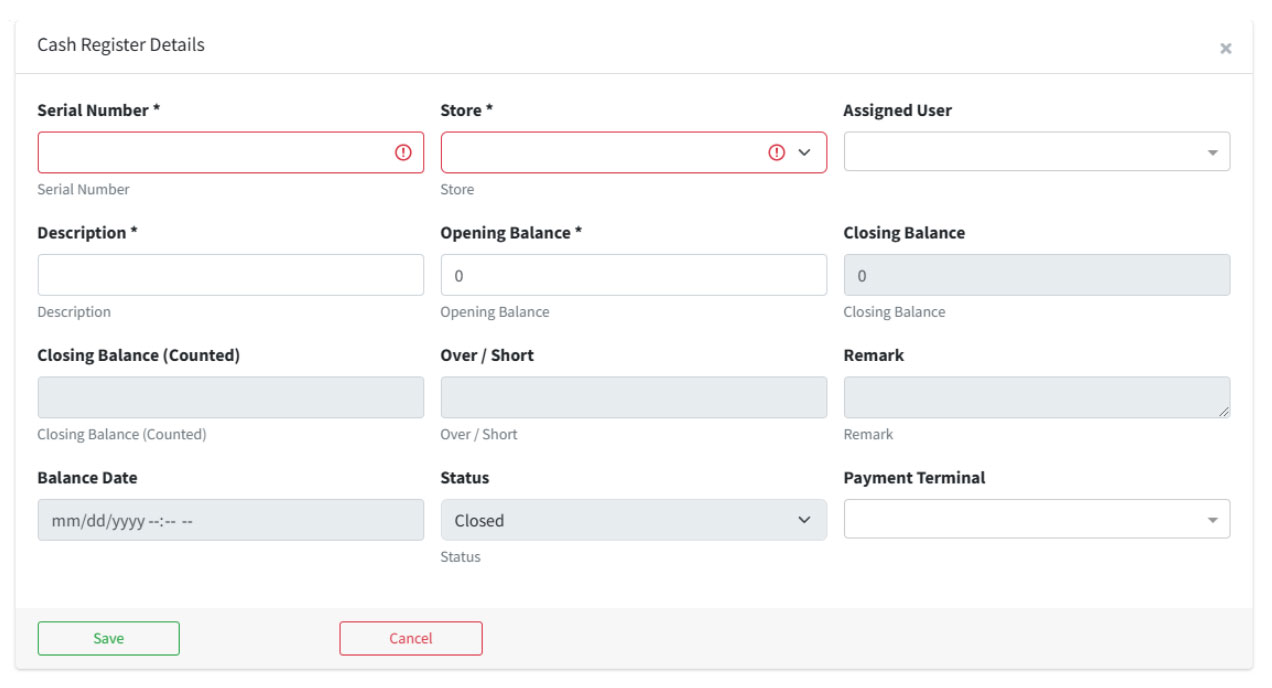
- Fill in Cash Register Details
- Serial Number:
- For Mantle hardware: Use the provided serial number to trigger the open-drawer command.
- For other hardware: Choose a unique serial number to identify the register.
- Store:
- Select the store location where this register will be used.
- Staff Members:
- Assign staff to the register.
- For registers shared by multiple staff, select all relevant team members.
- Description:
- Enter a description to identify the register (e.g., “Register One” or “Register Near the Front Door”).
- Opening Balance:
- Specify the amount of cash you typically start with in this register.
- MX Merchant Terminal:
- If using MX Merchant, assign the terminal to this register.
- If not set up yet or if you’re using standalone hardware, leave this blank.
Note: Other fields in the Cash Register Details window are locked and will activate once the register is in use.
- Serial Number:
- Save Your Register
- Click SAVE to finalize your setup.
- Your new register will now appear in the Cash Register list.
Posted
Updated
ByKevin Kirwan
Table of Contents